Help
On this page, you’ll find instructions on how to create and modify posts on the site. We’ve included screen shots and detailed instructions to help guide you.
How to Add a Post
Click the “Create a Listing” button in the main navigation.
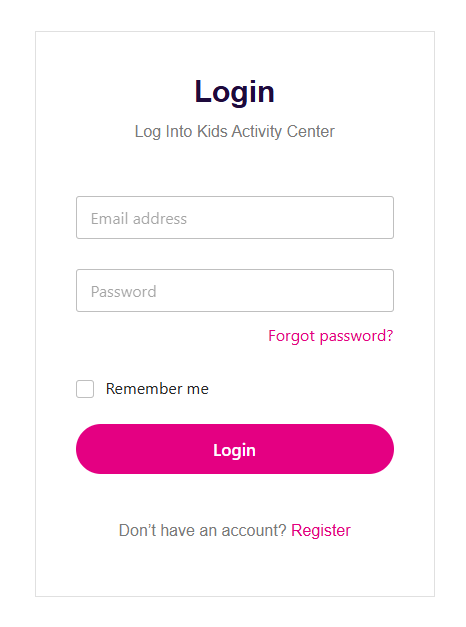
Enter your email and password in the login window. If you haven’t registered yet, please click the “Register” link at the bottom of the login window to create a new account.
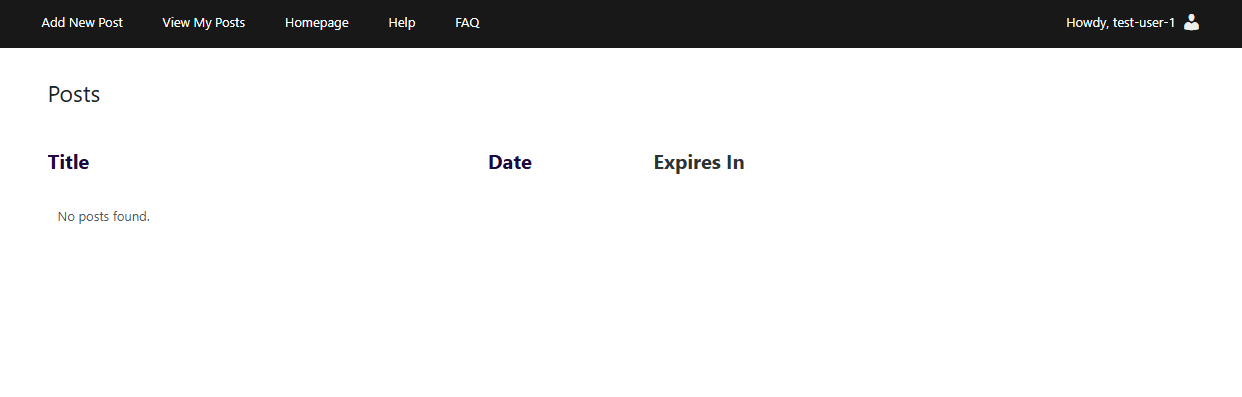
After you log in, you will be redirected to your dashboard. When you add your posts (listings), they will be displayed on this page. You can also manage your posts (delete, extend, edit) from here.
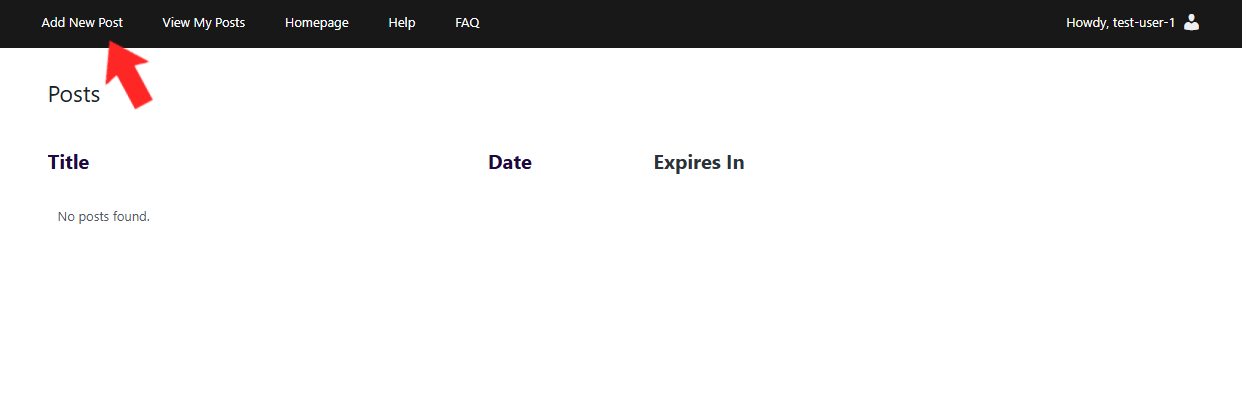
To add a new post (listing), please click ‘Add New Post’ in the main navigation.
On the next screen, please fill out all the fields, select your number of days, enter your credit card information, and click ‘Submit’.
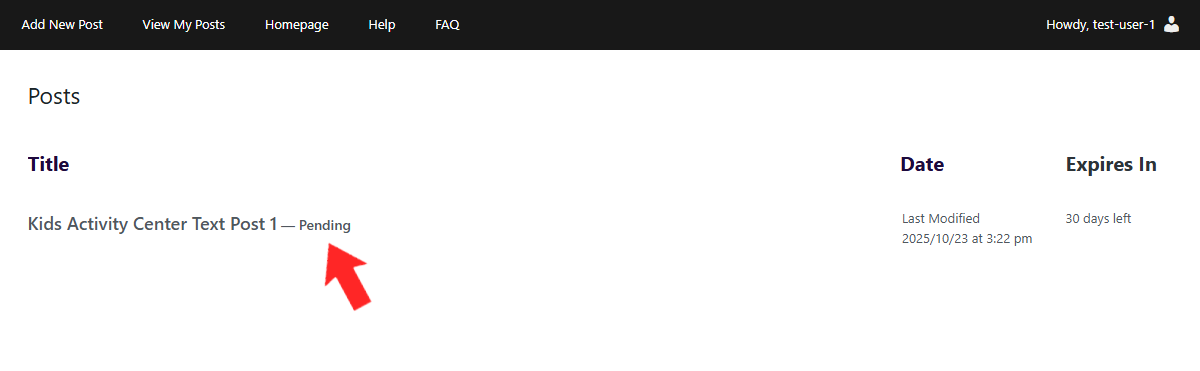
After the post is submitted, it will be in pending status. Once a moderator approves your post, it will be published on the Kids Activity Center website and will be available for the public to view.
How to Edit a Post
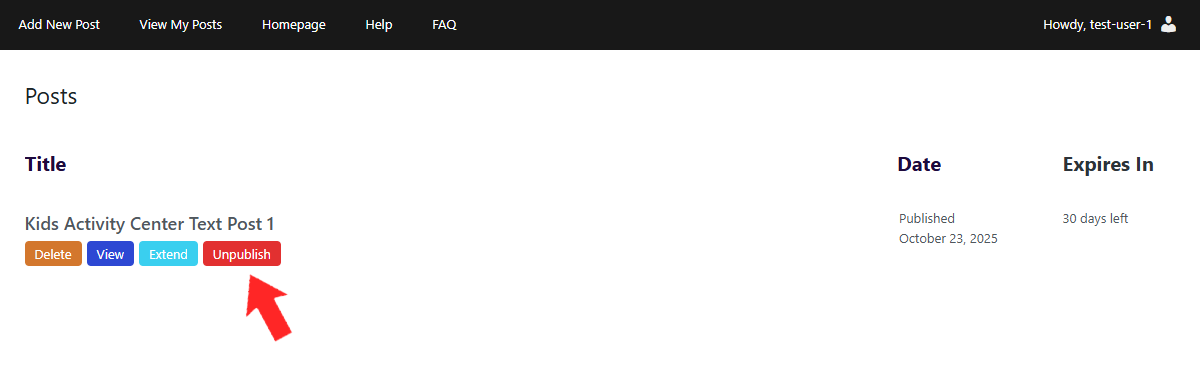
To edit the post, please unpublish it by clicking ‘Unpublish’. This will switch the post to ‘Draft’ and allow it to be edited.
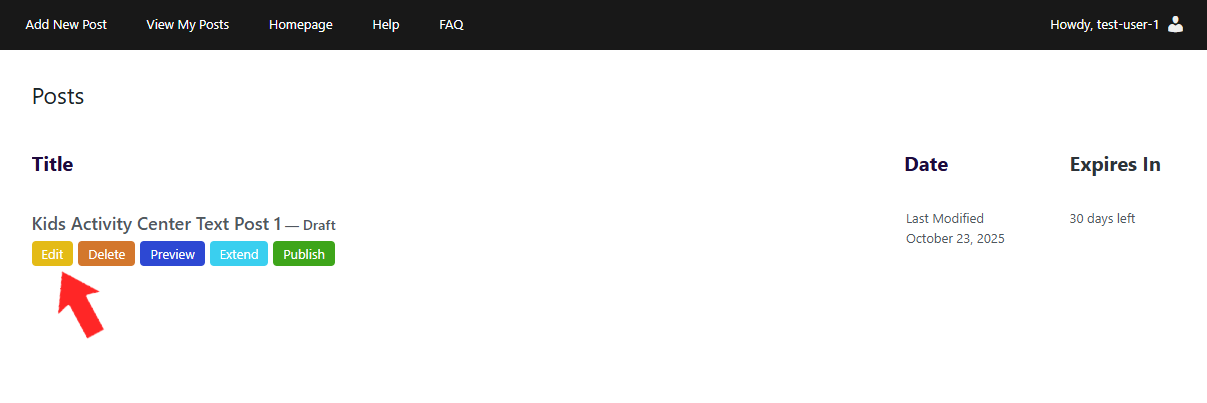
After unpublishing the post, you can make changes by clicking ‘Edit’ below the post title.
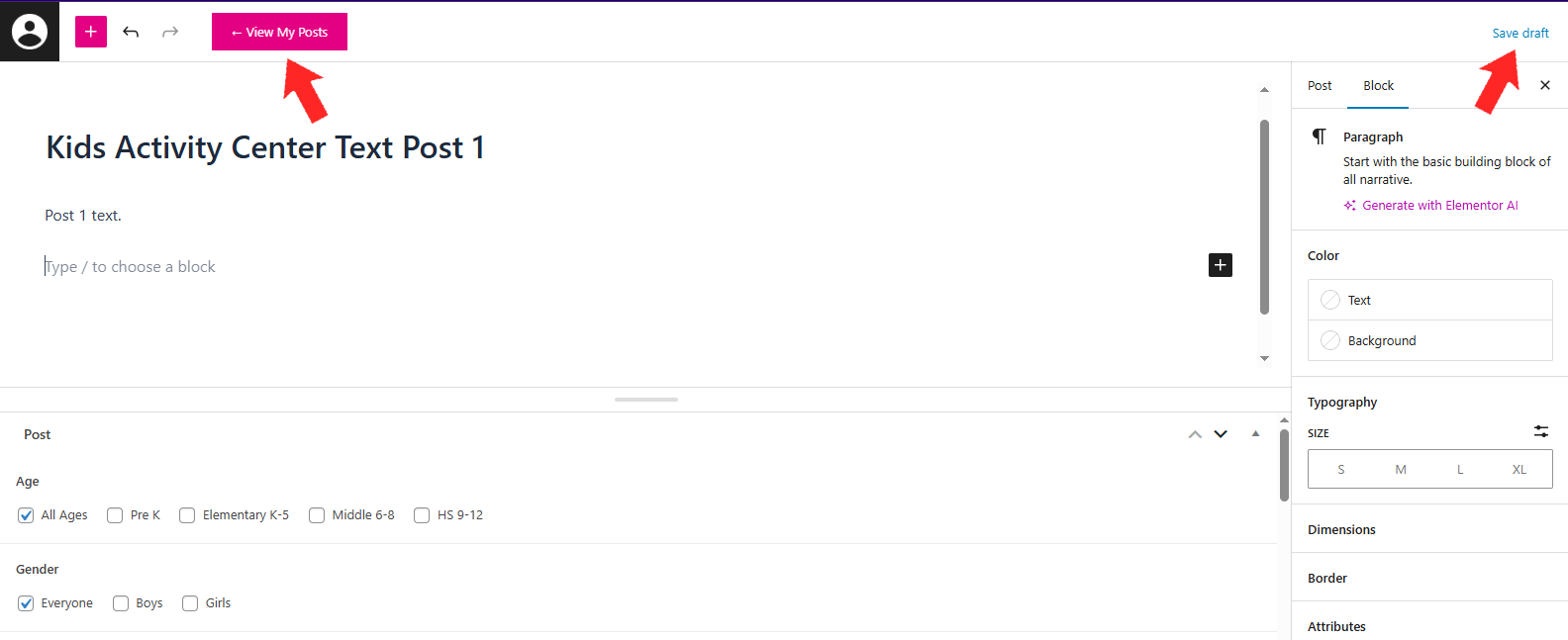
When you finish editing your post, please save the changes by clicking ‘Save Draft’. After that, you can return to the list of your posts (dashboard) by clicking the pink ‘View My Posts’ button.
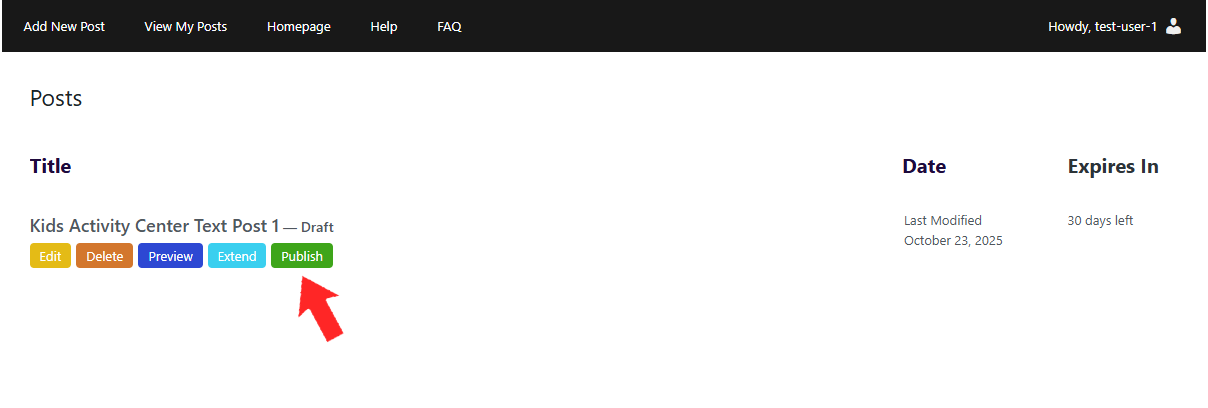
To publish your edited post, please click ‘Publish’. Your post will be switched to ‘Pending’ status and will wait for moderation. After moderation, it will be published for the public.
How to Extend a Post
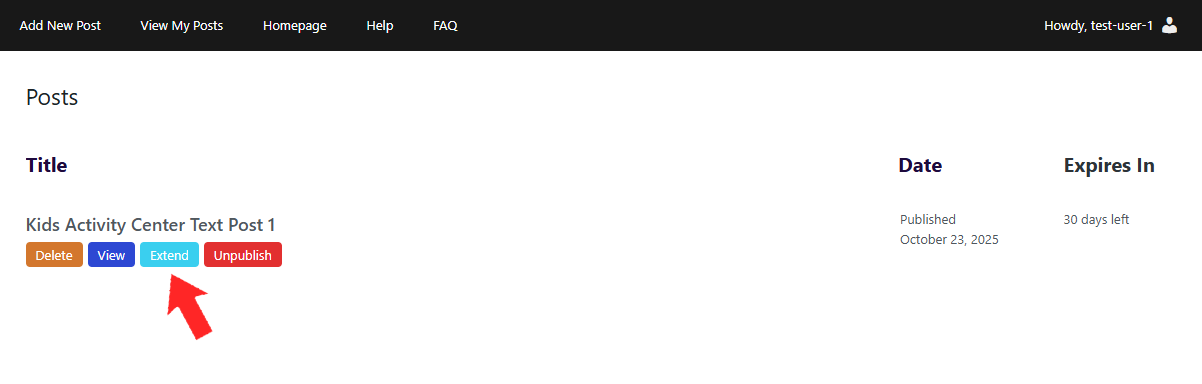
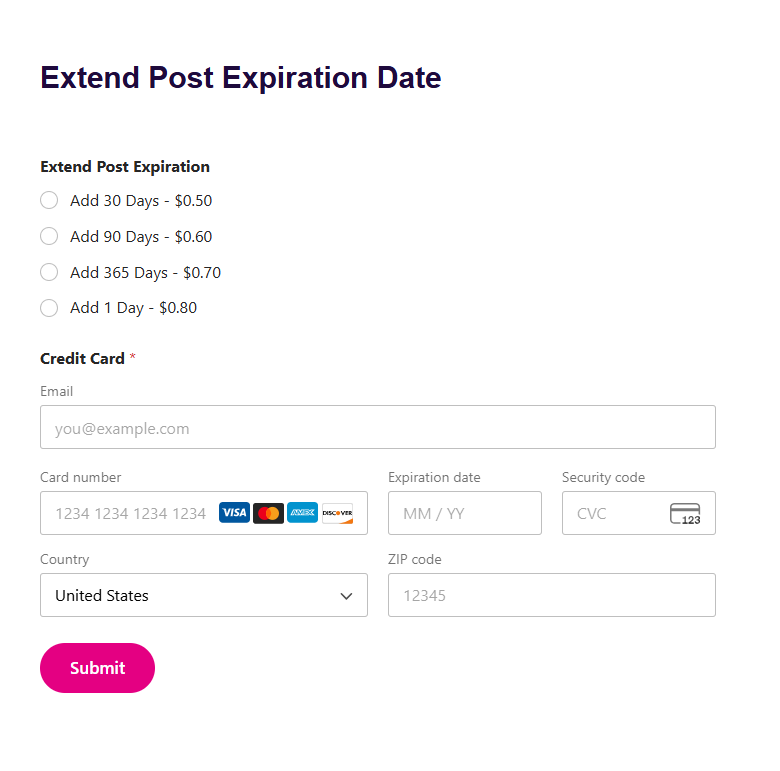
To extend the expiration date of a post, please click the ‘Extend’ button below the post title. On the next screen, please select the extension period, enter your credit card information, and click ‘Submit’.
How to Preview a Post
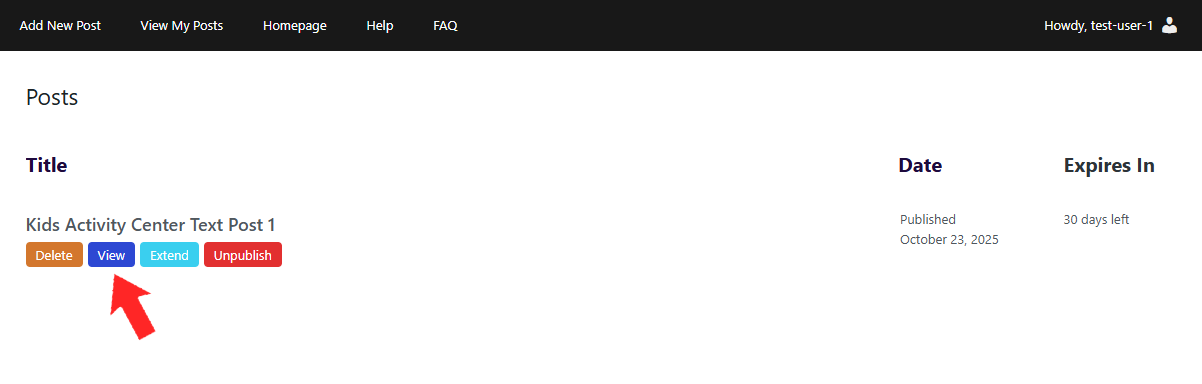
To preview a post, please click the ‘View’ button below the post title.
How to Delete a Post
How to delete a post, please click the ‘Delete’ button below the post title.